
Provision a Kubernetes cluster with SimpleCluster
In this tutorial, we enable Apeiro Hosting and SimpleCluster, request a Kubernetes cluster from the CLI and follow provisioning in the Showroom portal. We use Apeiro Hosting with IronCore and finish with a ready cluster and synchronized access credentials. Application deployment is a separate step, outlined at the end.
For the hosting choices and responsibilities behind this setup, read the sovereign workload hosting scenario.
How the pieces fit together

The request follows this path:
- The consumer selects a provider configuration and requests a cluster.
- Platform Mesh makes the service API available in the consumer workspace and synchronizes requests and status with the provider.
- SimpleCluster and the provider integration create the infrastructure and return cluster status and access.
- The target Kubernetes cluster runs the workload.
The dashed line shows the separate path for deploying and operating the workload. An application operator, GitOps controller or Kubernetes client can handle that. Application traffic doesn't pass through Platform Mesh, and SimpleCluster doesn't take over general application lifecycle management.
You create a SimpleCluster and reference a namespaced SimpleClusterProviderConfig. SimpleCluster uses that configuration to build and reconcile the required resources. The provider controllers handle the infrastructure operations and return cluster status and a kubeconfig.
Which resources are created, and when?
The sequence below shows who creates each resource, from the API bindings through cluster provisioning to application deployment. Solid arrows show requests or automated actions. Dashed arrows show responses or published results.

Before you start
The platform administrator needs to install the APIExports, operators and sync agents and configure the provider's Gardener access, project and infrastructure settings. Cloud credentials, capacity, networking and access policies must already be in place. Binding the service doesn't set those up for you.
You need permission to create APIBindings in the consumer account workspace. Whoever deploys the workload will also need access to the new cluster's Kubernetes API and an approved image registry.
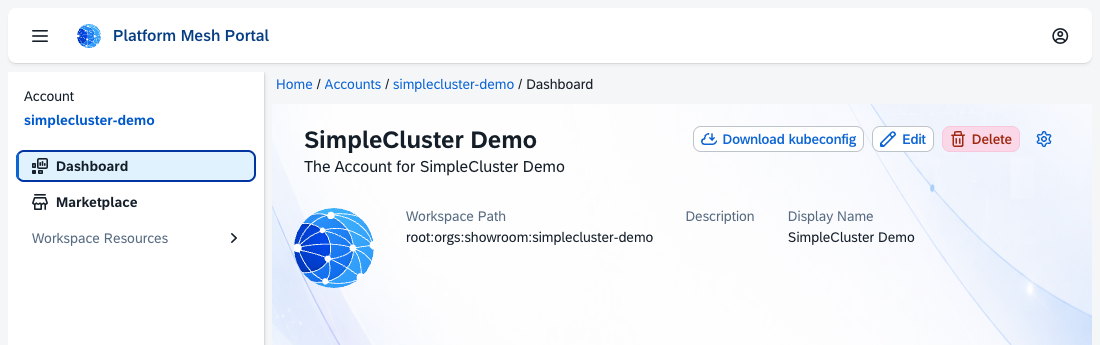
Open the account's Dashboard in the portal and check that you're in the right account. We're using simplecluster-demo here.
1. Download the workspace kubeconfig
Choose Download kubeconfig on the dashboard. This connects your CLI to the account's KCP workspace, not to the Kubernetes cluster you're about to create.
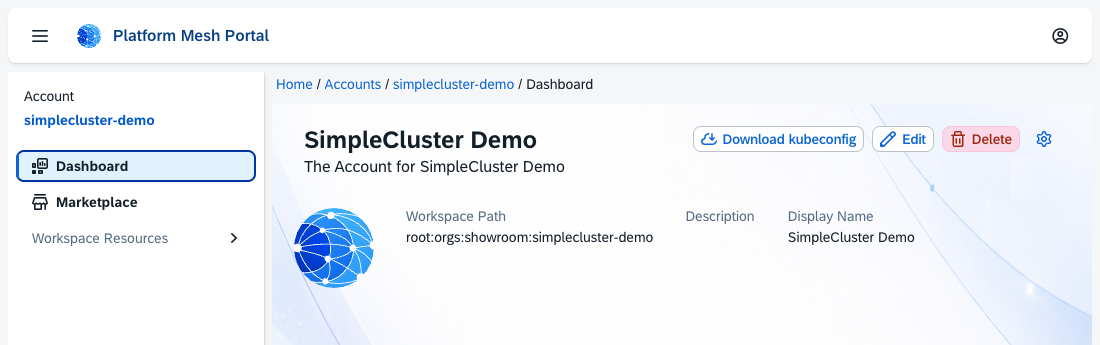
Move the downloaded file into a private temporary directory. Keep it outside the repository and don't print its contents:
SESSION_DIR="$(mktemp -d)"
chmod 700 "$SESSION_DIR"
mv "$HOME/Downloads/kubeconfig.yaml" "$SESSION_DIR/workspace.yaml"
chmod 600 "$SESSION_DIR/workspace.yaml"
export WORKSPACE_KUBECONFIG="$SESSION_DIR/workspace.yaml"
Adjust the filename if your browser added a suffix. You'll need the kubectl oidc-login plugin and your own platform login. Before applying anything, check which workspace and identity the CLI is using:
kubectl --kubeconfig "$WORKSPACE_KUBECONFIG" config view --minify \
  -o jsonpath='{.clusters[0].cluster.server}{"\n"}'
kubectl --kubeconfig "$WORKSPACE_KUBECONFIG" auth whoami
For this demo, the server points to root:orgs:showroom:simplecluster-demo. The identity check confirmed our user with system:authenticated, without admin groups. Use your account-scoped identity here, not a KCP administrator kubeconfig.
2. Bind the APIs from the CLI and check the Marketplace
Create two cluster-scoped APIBinding resources in the same consumer workspace: one for Apeiro Hosting's apeiro.eu APIExport and one for simpleclusters.showroom.apeirora.eu. The order doesn't matter, but both are needed before Apeiro Hosting supplies its provider configurations.
You'll need the kubectl kcp plugin for the next commands. Each command uses the downloaded workspace kubeconfig, so there's no need to switch workspaces or use admin credentials.
The commands also accept the providers' requested access to Namespaces, Events and Secrets. These exports request all verbs and all matching objects in the workspace. That includes access to credentials, not just API discovery. Check that this fits your access policy before running them.
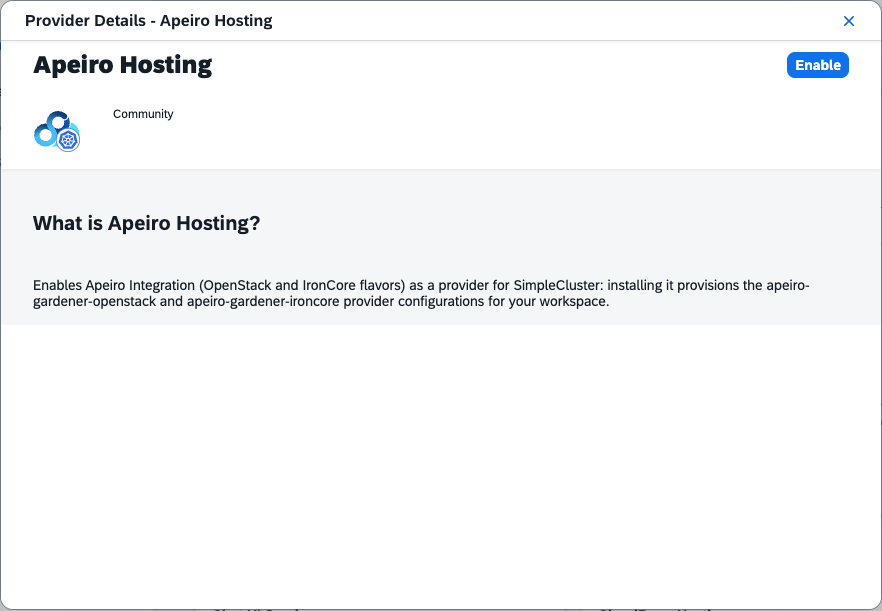
Apeiro Hosting: before the CLI bind
Open Marketplace → Apeiro Hosting. Its details page shows Enable because the API isn't bound yet. Don't click it for this walkthrough; we'll create the binding from the CLI.
Bind the APIExport from the terminal:
KUBECONFIG="$WORKSPACE_KUBECONFIG" kubectl kcp bind apiexport \
  root:providers:apeiro:apeiro.eu \
  --name apeiro.eu \
  --accept-permission-claim namespaces.core,events.core,secrets.core \
  --timeout 120s
The command returned:
apibinding apeiro.eu created. Waiting to successfully bind ...
apeiro.eu created and bound.
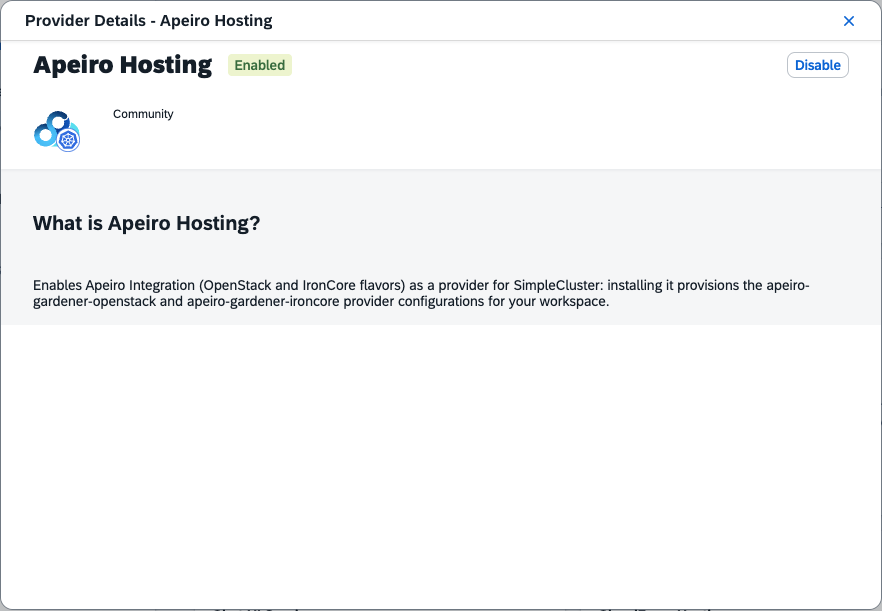
Reopen the same Marketplace entry. It now shows Enabled and offers Disable. The APIBinding created in the terminal is reflected in the portal.
Simple Cluster: before the CLI bind
Next, open Marketplace → Simple Cluster. This needs its own binding. Binding Apeiro Hosting doesn't automatically enable the SimpleCluster API.
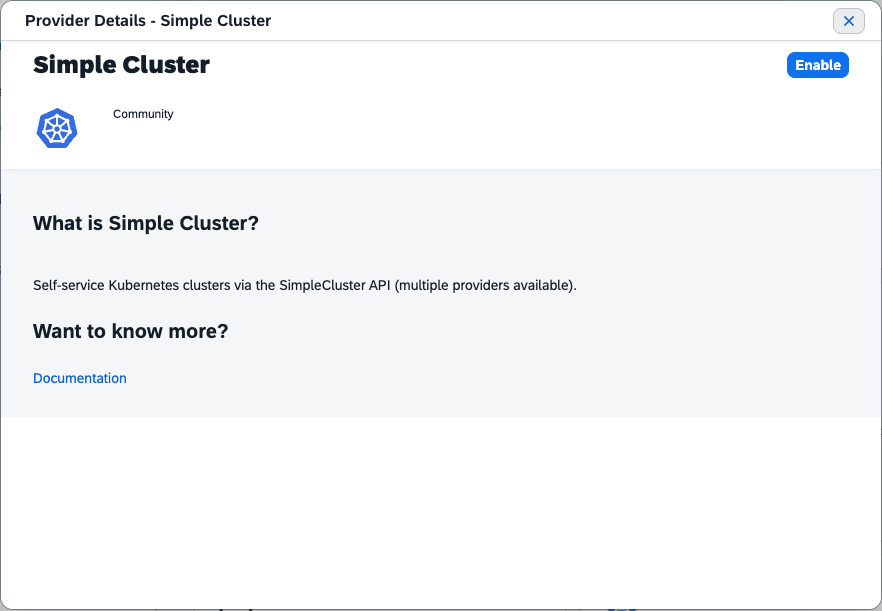
Bind this API from the terminal as well:
KUBECONFIG="$WORKSPACE_KUBECONFIG" kubectl kcp bind apiexport \
  root:providers:simple-cluster:simpleclusters.showroom.apeirora.eu \
  --name simpleclusters.showroom.apeirora.eu \
  --accept-permission-claim namespaces.core,events.core,secrets.core \
  --timeout 120s
The second command returned:
apibinding simpleclusters.showroom.apeirora.eu created. Waiting to successfully bind ...
simpleclusters.showroom.apeirora.eu created and bound.
Reopen the entry and check that it also shows Enabled.
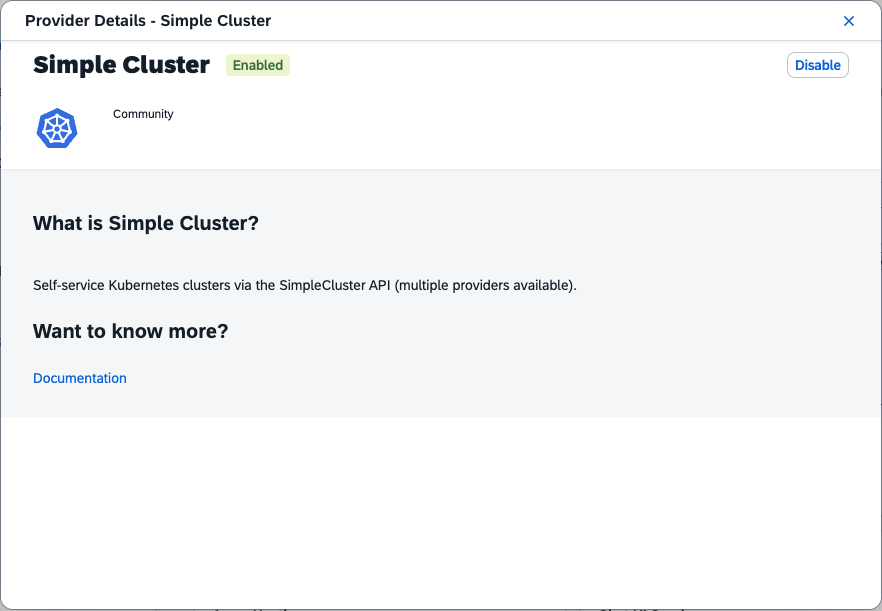
These provider paths belong to this demo environment. For your own setup, use the references from the service catalog or platform administrator. Don't infer them from repository names.
Verify the binding conditions
The bind command waits for Bound; also check readiness and the applied permissions:
for condition in Ready PermissionClaimsValid PermissionClaimsApplied; do
  kubectl --kubeconfig "$WORKSPACE_KUBECONFIG" wait \
    apibindings.apis.kcp.io/apeiro.eu \
    apibindings.apis.kcp.io/simpleclusters.showroom.apeirora.eu \
    --for=condition="$condition" --timeout=120s
done
Both bindings reported Bound, and all three checks completed.
3. Let the provider prepare the account
The bind-watcher records the bound exports on the provider side and creates an account Namespace if needed. Once both services are bound, Apeiro Hosting creates two namespaced SimpleClusterProviderConfig resources there:
apeiro-gardener-ironcoreapeiro-gardener-openstack
These configurations live in the provider's account namespace, named after the consumer's KCP logical-cluster ID. You don't create them in your application namespace. You also don't need to create an IronCoreShoot or Gardener Shoot to activate hosting.
If the new navigation entries haven't appeared, refresh the portal. Open Simple Cluster → Clusters. At this point, the account has no cluster requests yet.
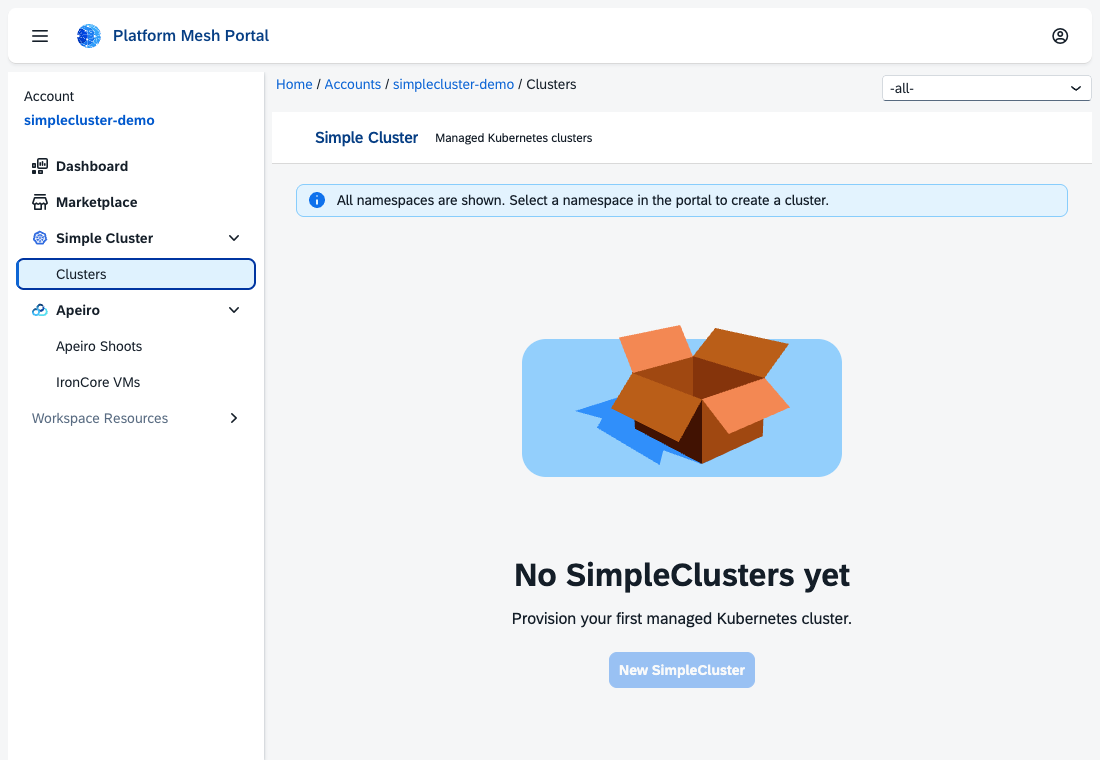
The available provider configurations and their placement are managed on the provider side. Confirm those choices with the platform administrator. We'll select the IronCore configuration in the next step.
4. Apply the SimpleCluster request from the CLI
Create a namespaced SimpleCluster in the workspace. Here, we use sovereign-workloads in the existing default namespace and select apeiro-gardener-ironcore through spec.providerConfigRefs. We request one worker with 1 CPU and 8 GiB of memory. The provider selects a supported machine profile that meets those requirements, which may be larger than the requested size.
Download the example cluster request and save it as simplecluster.yaml. It contains the fields used here and no credentials. Review the provider, namespace and sizing for your setup, then validate and apply it with the workspace kubeconfig:
kubectl --kubeconfig "$WORKSPACE_KUBECONFIG" \
  apply --dry-run=server -f simplecluster.yaml
kubectl --kubeconfig "$WORKSPACE_KUBECONFIG" \
  apply -f simplecluster.yaml
The live apply returned:
simplecluster.showroom.apeirora.eu/sovereign-workloads createdReturn to Simple Cluster → Clusters in the same account. You'll see the request created through the CLI. Check its name, namespace and provider; there's no need to create it again in the portal.
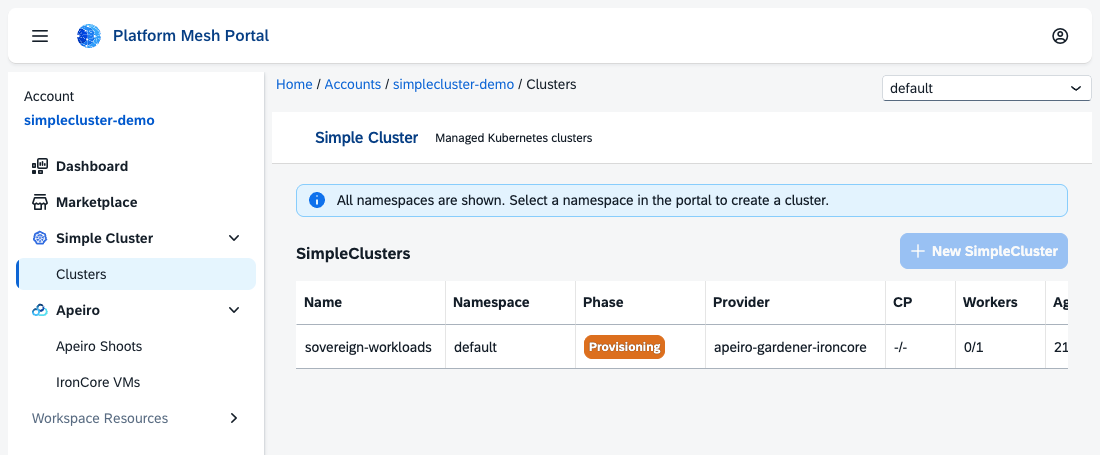
The sync agent mirrors the request into the provider's account namespace. SimpleCluster uses the selected provider configuration to create an apeiro.eu IronCoreShoot on the provider cluster. The OpenStack configuration creates an OpenStackShoot instead.
Check where the selected configuration will actually create the cluster. Its name alone doesn't establish location or jurisdiction. SimpleCluster currently locks the first selected provider, so listing several references doesn't provide automatic failover or capacity-aware placement.
5. Watch provisioning in the portal
The Apeiro Hosting controller turns the provider-side IronCoreShoot into a Gardener Shoot in the configured Garden project namespace. Gardener then provisions the cluster on the selected infrastructure.
You don't apply the Shoot yourself. The provider integration creates and reconciles it. The IronCoreShoot lives in a namespace on the provider cluster; the Gardener Shoot lives in the Garden. Neither is created in your consumer workspace on this path.
Watch the phase and worker count in the SimpleCluster list. A request showing Provisioning or 0/1 workers isn't ready yet.
6. Check cluster readiness and get target access
Once Gardener reports success, the Apeiro Hosting controller requests an admin kubeconfig and stores it in a provider-side Secret. SimpleCluster reads the result, creates its own kubeconfig Secret and reports its reference through status.kubeconfigSecretRef.
The sync agent mirrors the status and related Secret back into your consumer workspace. For sovereign-workloads, the expected Secret name is sovereign-workloads-kubeconfig, in the same namespace as the request, with a kubeconfig data key. Always use the reference reported in the status rather than assuming the name.
Wait for both Ready and KubeconfigValid. Ready covers the provisioning resources. KubeconfigValid confirms that the provider-side kubeconfig is available, not that the sync agent has copied it into your workspace. Check the consumer Secret separately. Neither condition tests a client connection to the cluster or application health.
You can wait for both conditions from the CLI while following progress in the portal:
kubectl --kubeconfig "$WORKSPACE_KUBECONFIG" -n default \
  wait simplecluster/sovereign-workloads --for=condition=Ready --timeout=30m
kubectl --kubeconfig "$WORKSPACE_KUBECONFIG" -n default \
  wait simplecluster/sovereign-workloads --for=condition=KubeconfigValid --timeout=5m
Once both conditions are met, check that the portal shows Ready, with 1/1 workers ready. Also check that the Secret named in status.kubeconfigSecretRef exists, without displaying its contents.
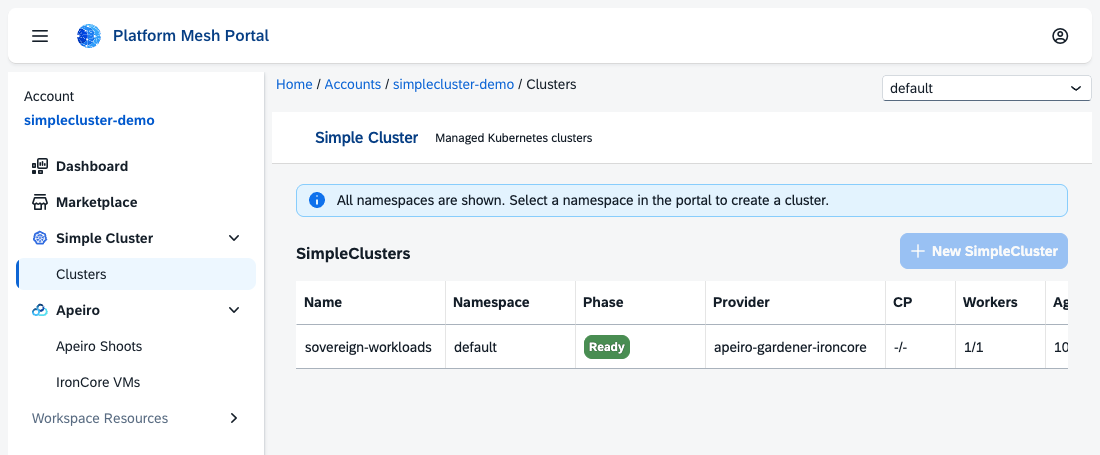
Choose either the portal or the CLI to retrieve the target kubeconfig. Both use the credentials returned for this cluster, not the workspace kubeconfig downloaded in step 1.
Download from the portal
Open Simple Cluster → Clusters and find sovereign-workloads in default. In that row, choose Kubeconfig, then Save as file in the dialog. The suggested filename is sovereign-workloads.kubeconfig. Depending on the browser, you'll get a save dialog or a download.
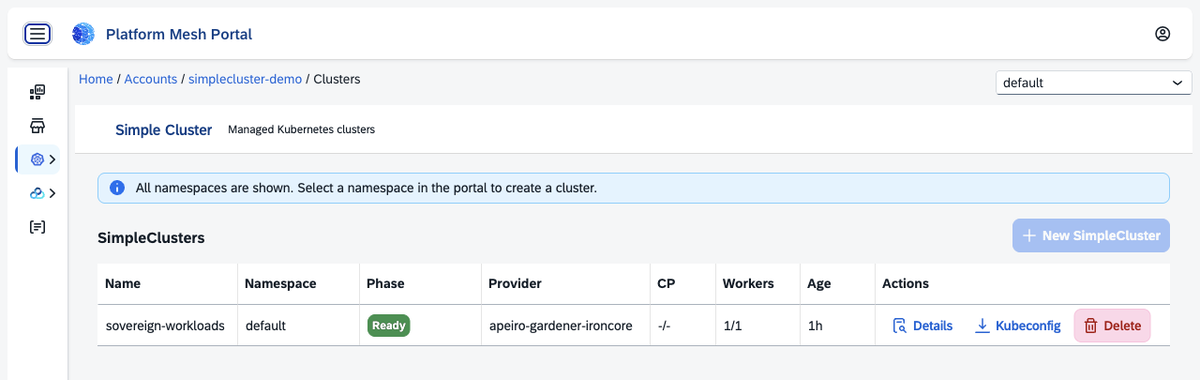
If the file lands in Downloads, move it into the private directory created in step 1 and restrict access. Adjust the filename if your browser added a suffix:
mv "$HOME/Downloads/sovereign-workloads.kubeconfig" "$SESSION_DIR/target.yaml"
chmod 600 "$SESSION_DIR/target.yaml"
export TARGET_KUBECONFIG="$SESSION_DIR/target.yaml"
Retrieve from the CLI
Alternatively, use the Secret name reported in status.kubeconfigSecretRef.name. For this request, extract its kubeconfig into a local file:
umask 077
kubectl --kubeconfig "$WORKSPACE_KUBECONFIG" -n default \
  get secret sovereign-workloads-kubeconfig -o jsonpath='{.data.kubeconfig}' \
  | base64 --decode > target.kubeconfig
export TARGET_KUBECONFIG="$PWD/target.kubeconfig"
Run this outside the repository. umask 077 restricts access to newly created files. On macOS, use base64 -D instead of base64 --decode. If retrieval fails, wait for the Secret to synchronize and retry; don't use an empty output file.
Use WORKSPACE_KUBECONFIG to manage SimpleCluster requests and TARGET_KUBECONFIG for commands against the new Kubernetes cluster. Downloading the file doesn't test a connection to that cluster or application health; check those separately.
This Gardener path currently issues admin credentials. Keep them out of Git, terminal output and screenshots, and remove temporary copies when you're done. Agree how they expire, rotate and can be revoked with the platform administrator.
7. Deploy and operate the workload
With cluster access available, you or the service provider can apply a standard Kubernetes Deployment directly to the target cluster, not to the Platform Mesh workspace. A small web application with two replicas and an HTTP readiness probe is enough for a first check. Use a reviewed image from the approved registry and pin its digest. The screenshots in this walkthrough cover cluster provisioning, not application deployment.
The Deployment controller creates the ReplicaSet and Pods on the target cluster. Check that you're connected to the intended environment, the rollout completes and both replicas are ready. A ready SimpleCluster doesn't replace these application checks. If the application needs external access, configure its Service or ingress and TLS separately.
SimpleCluster can also apply manifests from optional spec.resources entries using the generated kubeconfig. We've kept that separate here to show who handles cluster provisioning and who handles the application. A successful apply still doesn't confirm application health or provide full application lifecycle management.
When you're done, remove both temporary kubeconfig files and any extra downloads. This only removes your local credentials, not the cluster. Cluster teardown is outside this walkthrough.
Who operates what?
The customer chooses or approves where the workload runs. The infrastructure owner operates the environment or delegates that work. The cloud account, cluster and application service can belong to different parties, so agree who is responsible for each before deployment.
SimpleCluster and the provider integration manage cluster provisioning. They need the corresponding infrastructure permissions. Keep those cloud credentials separate from the Kubernetes credentials used to deploy applications, and protect both.
The workload operator handles application deployment, upgrades, health and removal. That can be the customer or a service provider with access to the cluster. Running in the customer's environment doesn't automatically remove provider access or make the customer responsible for operating the application.
Protect credentials wherever they are stored or used, including Secrets, controllers and local clients. Agree how access is audited, rotated and revoked. Give application operators the permissions they need, rather than unrestricted cluster administration by default.
What does this mean for sovereignty?
SimpleCluster gives you a common API for requesting clusters in approved hosting environments. Sovereignty still depends on the provider, jurisdiction, access controls, infrastructure operations and supply chain.
The setup may still rely on external management and identity services, cloud APIs, image registries, DNS and network access. Cluster location alone doesn't make the service air-gapped, compliant or entirely customer-controlled.
A few practical limits are worth keeping in mind:
- Destinations need a suitable provider integration and preparation. Importing arbitrary existing clusters is not built in.
- Portable manifests do not migrate application state or provide automatic failover. Plan separately for moving workloads, data and traffic.
- A ready cluster does not guarantee a healthy application. Check the workload and agree monitoring, storage, backups and recovery.
- Removing an optional
spec.resourcesentry does not delete the deployed object. Deleting a workload and tearing down its cluster are separate operations; check what happens to data and external resources before either. - SimpleCluster is a demonstration project. Assess security, support and availability before considering a production setup.
Further reading
The SimpleCluster repository contains the architecture, API reference, provider contract, provider guide and operations guide.
The Apeiro Hosting repository contains the APIExport and permission claims and the account activation controller behind the sequence above.